
Filet Crochet Pattern Generator
Create a black-and-white filet grid and choose which image areas become filled cells.
Image & settings
See how the generator works without uploading a photo. Your image stays on your device.
Original image
Generated pattern
Upload an image or try a sample, then choose Generate Pattern.
Select a color and click a chart cell to edit. On the focused chart, use arrow keys to choose a cell and press Enter or Space to paint.
Undo and Redo shortcuts: Ctrl/Cmd+Z to undo; Ctrl/Cmd+Shift+Z or Ctrl/Cmd+Y to redo.
Color chart instructions
Each entry is a filled or open filet chart cell, not a stitch count.
Row 1 starts at the bottom. Work flat rows in alternating directions, beginning right to left.
Follow Pattern
Finished size estimate
A stitch-based estimate is not shown for Filet because each chart cell may represent a multi-stitch mesh.
Color legend
| Color # | Swatch | HEX | Cell Count | Percentage |
|---|
PDF project details
Optional yarn amounts by color
Enter amounts measured for your own project; the PDF will label them as user-supplied. Leave blank if unknown.
Filet filled/open example
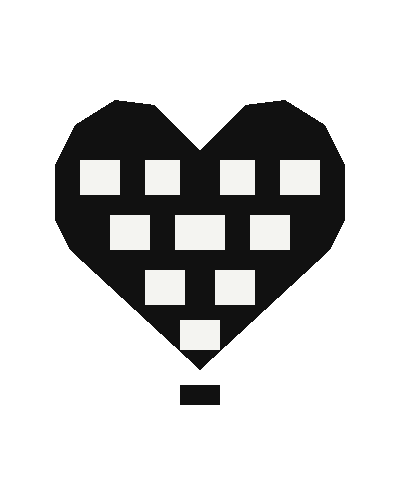
Filled and open cells are a two-state visual chart. Check the counts and adapt them to a filet stitch repeat.
Color legend
How it works
Choose a JPG, PNG or WebP image. It stays on your device.
Set stitch width, image shape, palette size and chart options.
Inspect the chart, then save a PNG, CSV or printable PDF.
Adjust filled and open cells
Move the threshold to change which areas are filled; the chart and per-row totals update immediately. Invert swaps filled and open cells.
Check the filet repeat
The summary shows total counts for both cell types, and each row lists its own counts. Adapt the grid to the filet stitch repeat you plan to work; it does not produce full instructions.
What this tool creates
Each cell is classified as filled or open. Adjust the threshold and invert the result to suit your motif. The chart does not calculate complex stitch instructions.
Tips for better results
- Use silhouettes or line art for the clearest grid.
- Try Invert when the background becomes filled.
- Adjust threshold to preserve thin features.
- Count filled and open cells before starting.
Frequently asked questions
What do filled and open cells mean?
They are the two states of the visual filet grid; use them to plan solid and open areas.
Can I invert the pattern?
Yes. The Invert pattern switch swaps filled and open cells.
Are filled and open counts shown?
Yes. The result displays both calculated totals.
Does it write filet stitch instructions?
No. It produces a visual grid for planning.